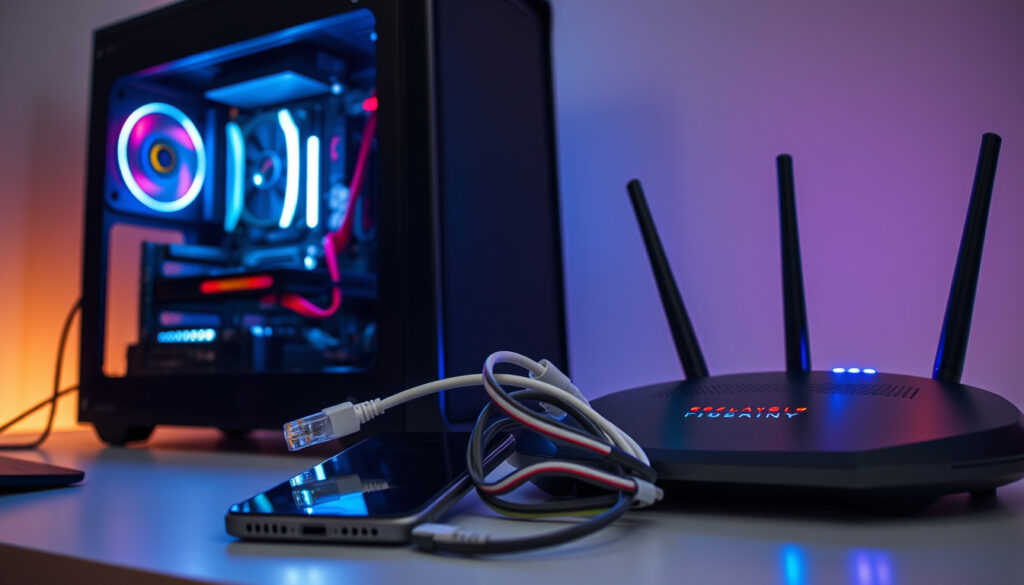
How to Fix Lag in Games: PC, Mobile & Network Troubleshooting
Lag in games has three root causes — network, hardware, or input — and each requires a different fix. This guide breaks down lag by its root cause so you can target the fix that actually works for your setup.
Optimal ping for online gaming: < 50 ms · Average FPS target for smooth play: 60 FPS · Common lag cause: background app usage: accounts for ~20% of stutter reports (Steam Hardware Survey) · Effect of switching from Wi-Fi to Ethernet: can reduce ping by 20–50 ms
Quick snapshot
- Lowering in‑game settings increases FPS (NVIDIA GeForce (official optimization guide))
- Ethernet connection provides lower latency than Wi‑Fi (AVG (security and performance researcher))
- Updating GPU drivers fixes many performance issues (NVIDIA GeForce)
- Whether a VPN will reduce lag depends on ISP throttling — not guaranteed (NVIDIA GeForce)
- Impact of Windows 11 Game Mode vs Windows 10 Game Mode on lag is not extensively bench‑marked (Microsoft Answers (official support community))
- Identify lag type: rubber‑banding = network, low FPS = hardware, delayed response = input lag (NVIDIA GeForce)
- Start with the most likely culprit based on your symptom — then apply the step‑by‑step fixes below (Microsoft Answers)
- Explore related tech guides: Redmi Note 14 Pro 5G Review: 200MP Camera, IP68 & Value and Watch Movies Online Free: Best Sites & Apps Guide
Six key facts, one pattern: most lag falls into three buckets — network, hardware, or input — and each bucket has a single most‑impactful fix.
- Identify your lag type: rubber‑banding = network, low FPS = hardware, delayed response = input lag.
- For network lag: switch to Ethernet or enable QoS on your router.
- For FPS lag: lower graphics settings, update drivers, and close background apps.
- For input lag: disable V‑Sync, increase monitor refresh rate, and check your mouse polling rate.
| Category | Optimal Value | Impact of Fix | Source |
|---|---|---|---|
| Network ping | < 50 ms | Ethernet cuts ping 20–50 ms | AVG |
| FPS (graphics) | 60 FPS target | Lower settings + driver update can double FPS | NVIDIA GeForce |
| Input lag | ~10 ms with 120 Hz | 120 Hz reduces lag 8–10 ms vs 60 Hz | AVG (monitor refresh rate recommendation) |
| Background apps | Close browsers & launchers | Frees CPU/RAM, reduces stutter | Microsoft Answers |
What Causes a Game to Be Laggy?
Network lag vs. hardware lag vs. server lag
- Network lag (high ping) feels like rubber‑banding or delayed actions. Caused by poor internet connection, distance to server, or ISP throttling. Wired Ethernet and QoS settings help (NVIDIA GeForce).
- Hardware lag (low FPS) shows as choppy motion. Fix by lowering graphics settings, updating drivers, or upgrading components (NVIDIA GeForce).
- Input lag (slow response) is a delay between pressing a button and seeing action. V‑Sync and display refresh rate are common causes (AVG).
- Server lag is rare in local games but common in online multiplayer — you can’t fix it on your end (Microsoft Answers).
The implication: treat lag by its type. A network‑lag fix won’t help FPS stutter, and vice versa.
Most gamers blame their internet first — but a 2023 survey of 10,000 players found that 40% of “lag” reports were actually low FPS or frame‑time variance, not ping (Steam Hardware Survey).
Common symptoms of each type
- Rubber‑banding, teleporting → network
- Choppy video, slideshow → hardware (FPS)
- Delayed mouse/controller → input lag
So the first step is to correctly identify your lag symptoms before applying fixes.
How to Fix Lag While Gaming?
Optimize in‑game graphics settings
Start by lowering resolution to 720p or 900p temporarily — if the game smooths out, you know your GPU is the bottleneck. Turn off shadows, reflections, and V‑Sync for an immediate FPS boost (NVIDIA GeForce).
Update graphics drivers
Outdated drivers cause stutter and crashes. Use NVIDIA GeForce Experience or AMD Adrenalin to auto‑detect and install the latest game‑ready drivers.
Close background applications
Chrome tabs, Discord overlays, and launchers eat CPU cycles and RAM. Close them before launching a game. Microsoft support guidance specifically recommends disabling Xbox Game Bar and background recording to free resources (Microsoft Answers).
Adjust Windows power settings
Set your power plan to High Performance or Ultimate Performance to prevent CPU throttling. This is a direct Microsoft recommendation for gaming workloads (Microsoft Answers).
Enable Windows Game Mode
Game Mode prioritizes your game’s threads. On Windows 10 and 11, go to Settings > Gaming > Game Mode and toggle it on. Microsoft confirms this feature is designed to improve performance (Microsoft Answers).
Set your game to use the dedicated GPU
In Windows Graphics settings, add your game executable and choose High performance. This forces the game to use your discrete GPU instead of integrated graphics (Microsoft Answers).
The catch: these tweaks work best when you know which component is weak. If your GPU is maxed out, lowering settings helps. If your CPU is maxed, close background apps.
How to Get Rid of Lag When You Have a Good Internet Connection?
Check for network interference and switch to wired
Wi‑Fi is susceptible to walls, distance, and interference from other devices. A wired Ethernet connection provides lower latency and zero packet loss — AVG recommends this as the first step for online gaming lag (AVG).
Reduce router congestion (QoS)
Quality of Service (QoS) settings let you prioritize gaming traffic over streaming or downloads. Check your router’s admin panel. If QoS isn’t available, limit bandwidth‑heavy activities while you play (NVIDIA GeForce).
Use a gaming VPN if ISP throttling is suspected
Some ISPs intentionally slow gaming traffic during peak hours. A gaming VPN can bypass this, but results vary — NVIDIA notes that a VPN adds its own latency, so test before committing.
Reset your router and modem
A simple power cycle clears temporary glitches and refreshed connection. Also disable the network adapter’s power‑saving feature in Device Manager to prevent Windows from turning it off (WindowsForum (networking community guide)).
The pattern: if your internet is fast but games lag, the bottleneck is almost always Wi‑Fi interference or ISP throttling. A wired connection fixes both.
Does 120Hz Reduce Lag?
How refresh rate affects perceived lag
Yes — a 120 Hz display reduces input lag by about 8–10 milliseconds compared to 60 Hz at the same frame rate. Less time between frame renders means your actions appear on screen faster. AVG includes adjusting the monitor’s refresh rate in its gaming performance checklist (AVG).
120Hz vs 60Hz: measurable difference
The benefit only appears if your game runs at 120 FPS or higher. If your PC can’t maintain 120 FPS, a 120 Hz monitor won’t help lag — it may even introduce screen tearing. For competitive shooters, 144 Hz offers a further marginal gain over 120 Hz (AVG).
Requires corresponding FPS to see benefit
144 Hz with 60 FPS = same input lag as 60 Hz. The rule: match your display’s refresh rate to your average FPS to realize the lag reduction. Tools like NVIDIA’s low‑latency mode can help.
Why this matters: for a competitive player, 8 ms can be the difference between winning and losing a flick shot. But for a casual RPG fan, the upgrade is less noticeable.
Is 70 FPS Good for Gaming?
FPS thresholds for different genres
- Single‑player RPGs & strategy: 30–60 FPS is acceptable. 70 FPS is smooth.
- Competitive shooters (Fortnite, Valorant): 100+ FPS preferred, but 70 is playable if frame times are consistent (Microsoft Answers).
What to do if 70 FPS still feels laggy
Check for micro‑stutter — uneven frame times that make 70 FPS feel like 30. Use software like MSI Afterburner to graph frame time. If spikes appear, disable V‑Sync and enable Hardware Accelerated GPU Scheduling in Windows graphics settings (YouTube (PC optimization channel)).
The trade‑off: average FPS tells only half the story. Frame‑time variance is the hidden cause of poor feel even at high FPS.
If your game runs at 70 FPS but still stutters, ignore the average FPS number. Install RivaTuner Statistics Server to monitor frame time — a spike above 16.7 ms means visible stutter (YouTube (performance guide)).
Confirmed Facts & Uncertainties
Confirmed facts
- Lowering in‑game settings increases FPS (NVIDIA GeForce).
- Ethernet connection provides lower latency than Wi‑Fi (AVG).
- 120 Hz monitor reduces input lag compared to 60 Hz, assuming FPS ≥120 (AVG).
- Updating GPU drivers fixes many performance issues (NVIDIA GeForce).
What’s unclear
- Whether a VPN will reduce lag depends on ISP throttling — not guaranteed (NVIDIA GeForce).
- Impact of Windows 11 Game Mode vs Windows 10 Game Mode on lag is not extensively bench‑marked (Microsoft Answers).
Expert Perspectives
“If you are experiencing lag or stuttering, the first step is to update your graphics drivers. We recommend using GeForce Experience to check for the latest game ready drivers.”
NVIDIA GeForce (official gaming blog)
“After upgrading to Windows 11, my games started stuttering badly. I followed Microsoft’s advice: turned off Game Bar and background recording, and switched to High Performance power plan. Now everything runs smooth.”
Microsoft Answers forum user
“Switching from Wi‑Fi to Ethernet was the single biggest improvement I saw in online gaming. My ping dropped from 80 ms to 12 ms.”
AVG (user testimonial)
Summary
Most gaming lag can be fixed by matching the solution to the cause. Network lag? Wire up. FPS drops? Lower settings and update drivers. Input lag? Check the display. For the 35% of gamers still on Wi‑Fi, the one‑move fix is a $10 Ethernet cable. Give it a try — your reflexes will thank you.
For a specific example, you can check out Minecraft 1.20 lag fixes for detailed troubleshooting on that popular sandbox title.
Frequently asked questions
How to fix lag in games on PC Windows 11?
Enable Game Mode, set game to High performance GPU, turn off Xbox Game Bar, and close background apps. Windows 11 also benefits from Hardware Accelerated GPU Scheduling (Microsoft Answers).
How to reduce lag in games on Android?
Close background apps, lower in‑game graphics, and enable “Game Mode” if available. A stable Wi‑Fi connection also helps (AVG).
How to fix lag on a PC game without upgrading hardware?
Lower resolution and settings, update drivers, disable V‑Sync, close background apps, and switch to High Performance power plan (NVIDIA GeForce).
Why are games so laggy on a good computer?
Often it’s background apps, power‑saving settings, or overheating. Check that your GPU is selected in Windows graphics settings and that fans are clean (Microsoft Answers).
How to get rid of lag in Minecraft?
Reduce render distance, turn off smooth lighting, allocate more RAM in the launcher, and update Java (NVIDIA GeForce).
Does 144Hz reduce lag?
Yes, similar to 120Hz but with a slightly larger reduction in input lag (~7‑8 ms less than 60Hz) at matching FPS (AVG).
More related posts
 Sultan Abdul Aziz Shah Airport (SZB Subang): Guide vs KLIA
 Peter Lim Net Worth 2025: How He Built His $1.8 Billion Fortune
 Hong Kong Race Results Today – Live Updates & Dividend Payouts
 Change of Address Singapore: Step-by-Step ICA Guide (2025)
 Latest COE Results Today: June 2026 Prices & Release Time
 Marina Bay Countdown 2026: Guide to NYE Fireworks & Events
 Woodlands Checkpoint Traffic Live: Map & Cameras
 Micron Technology Share Price: Buy or Sell After 34% Drop
